Morse key and paddle on your phone
Practice sending with your own straight key or iambic paddle instead of the touchscreen. What to plug in, how to set up Cadenza, and what to check when nothing happens.
- Key or paddle3.5 mm plug
- Interfaceacts as a keyboard
- Phone · CadenzaUSB-C or Bluetooth
How it works
A paddle is two switches, a straight key is one. A phone has no input for switches, so something in between has to turn each contact into a key press. A Morse interface does exactly that: to the phone it looks like a keyboard, and the dit and dah contacts arrive as Left Ctrl and Right Ctrl. Cadenza listens for those keys while you practice and does the rest.
That is also why a plain 3.5 mm to USB-C cable does nothing. It is an audio adapter, and the phone treats it as headphones, not as a key.
Which interface to use
VBand USB interface
Tested on iPhonePasses the paddle contacts straight through as Left Ctrl and Right Ctrl, with no keyer of its own. The external key support in Cadenza was built together with a Pro user who practices with it on his iPhone.
In CadenzaPaddle, or Straight for a straight keyVail adapter
Same keys, not tested by usStarts up as a keyboard and sends the same Ctrl keys, but runs its own keyer (Iambic B unless you change it), so the dits and dahs arrive already timed at the adapter's speed. If a MIDI app grabs it, it stops typing until you unplug and replug it.
In CadenzaStraightBluetooth keyboard interfaces
Not tested yetAn interface that pairs as a Bluetooth keyboard and sends the same keys should behave like a USB one, because the phone treats both the same way. We have not tried a specific Bluetooth model, so USB is the safer choice for now.
In CadenzaPaddle, or Straight if it has a keyerHome-built
Same keysA small board that can act as a USB keyboard (Arduino Leonardo, Pro Micro, Raspberry Pi Pico) works too. Wire the dit contact to Left Ctrl and the dah contact to Right Ctrl.
In CadenzaPaddle
Keys Cadenza listens for
- Dit
- Left Ctrl, [ or .
- Dah
- Right Ctrl, ] or /
In Straight mode any key keys the tone, and the tone lasts exactly as long as the contact is closed.
Setup, step by step
- 01
Plug the key or paddle into the interface and connect the interface to the phone. A USB-C iPhone or Android phone takes it directly, through a USB-C to USB-A adapter if the interface has a USB-A plug. A Lightning iPhone needs Apple's Lightning to USB Camera Adapter. Use a data cable, not a charge-only one. A Bluetooth interface is paired in the phone's Bluetooth settings.
- 02
On iPhone or iPad, turn off Dictation in Settings > General > Keyboard. Otherwise the Ctrl key starts dictation instead of keying the tone.
- 03
In Cadenza, open Settings > External key and choose the key type: Paddle if the interface passes the contacts through, Straight for a straight key or for an interface that does its own keying.
- 04
In Paddle mode Cadenza does iambic keying with element memory at your character speed. If dit and dah come out the wrong way round, turn on Swap paddles.
- 05
Optional: set Auto-check to 0.5, 1 or 2 seconds. Sending practice then checks each character by itself after that pause, so your hands stay on the key.
- 06
Open Train > Sending and start keying. The key also works in Tools > Morse input, where it types what you send.
If it does not key
- Ctrl starts dictation
- Turn off Dictation in Settings > General > Keyboard. This is an iPhone and iPad setting, Android does not need it.
- No tone at all
- Check that the cable carries data. When the phone sees a keyboard, the on-screen keyboard stops appearing when you tap a text field, which is a quick way to tell. A Vail adapter that a MIDI app has switched over needs to be unplugged for a few seconds and plugged back in.
- Elements come out doubled or uneven
- The interface has its own keyer and Cadenza is keying on top of it. Set the key type to Straight.
- Dit and dah are swapped
- Turn on Swap paddles in Settings > External key, or flip the plug wiring if you prefer.
- The section is marked Pro
- The external key is part of Cadenza Pro. You can see the settings before you buy.
Stuck? Write to contacts@trifoiltrailblazer.com with your phone model and interface, and we will help you get it going.
 Cadenza for iPhone and Android
Stop reading Morse. Start hearing it.
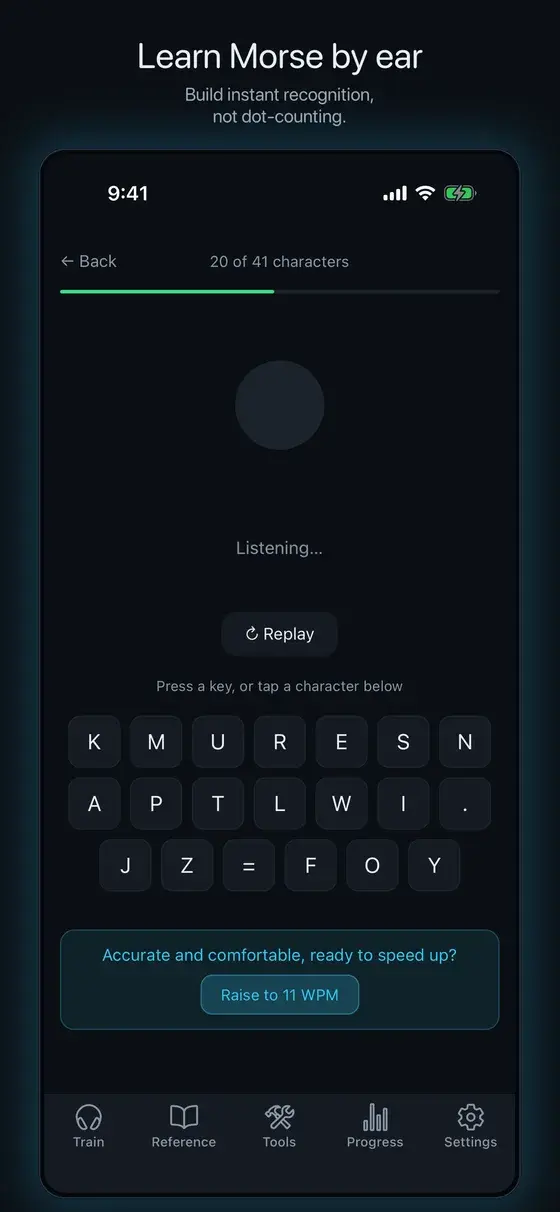
Cadenza teaches Morse code by ear with the Koch method: two letters at full speed, then one more each time you get them right. It notices which letters you mix up and drills exactly those.
- All 41 characters, then words, callsigns and QSO practice
- Two-way translator, microphone decoder and Morse postcards
- Sound, light and vibration. Works offline
Questions
Do I need Cadenza Pro?
Yes. The external key comes with Cadenza Pro, together with Sending practice. The annual plan starts with a free trial, so you can check your own interface and paddle before you pay.
Does it work on Android?
Yes. Android phones read keyboard interfaces over USB-C or Bluetooth the same way. Skip the Dictation step, it only applies to iPhone and iPad.
Can I use a straight key, a bug or a cootie?
Yes. Choose Straight. The tone follows the contact exactly, so the timing is all yours, which is what a straight key, a bug or a cootie needs.
Which keyer modes does Cadenza have?
Iambic keying with element memory at your character speed. For Iambic A, Ultimatic or another mode, let your interface do the keying and set Cadenza to Straight.
Does Cadenza read MIDI interfaces?
Not yet. Cadenza reads keyboard keys only. Most Morse interfaces, Vail included, can work as a keyboard.
Is there a video of the setup?
Not yet. The steps above are the whole setup. If something does not match what you see, write to us.